Quick Guide
- Keep the tutorial on and follow the yellow floor arrows.
- Read each order before preparing the tray; match the delivery customer.
- Collect money and clear tables, then finish the nightly checklist.
For Save the Krusty Krab how to play, start with the tutorial and complete one full service loop: take an order, grill the patty, assemble the requested meal, deliver it, then clear the table and collect the money. Finish the night chores before using the shift clock again.
On this page
Save the Krusty Krab How to Play: Your First Goal
Your first target is a completed shift, rather than a specific character or a large pile of upgrades. The tutorial makes that target concrete by showing the current job on the left side of the screen and marking the route with yellow arrows. Follow the active instruction instead of trying to work every station at once. That gives you a repeatable route before you add more orders or a second kitchen station.
The restaurant contains several similar interaction prompts, so read the label before using one. A prompt at the register handles orders; an assembly prompt handles the food on the tray; a customer prompt handles delivery. Treat those as three separate jobs. Moving to a station without completing its current interaction does not finish the order.
This walkthrough covers the first tutorial service and the cleanup that follows it. Later shifts add ingredients and interruptions, so a first-day burger is not a universal recipe for every later customer. Once you can complete the loop, use the solo strategy guide to reduce unnecessary walking and queue pressure.
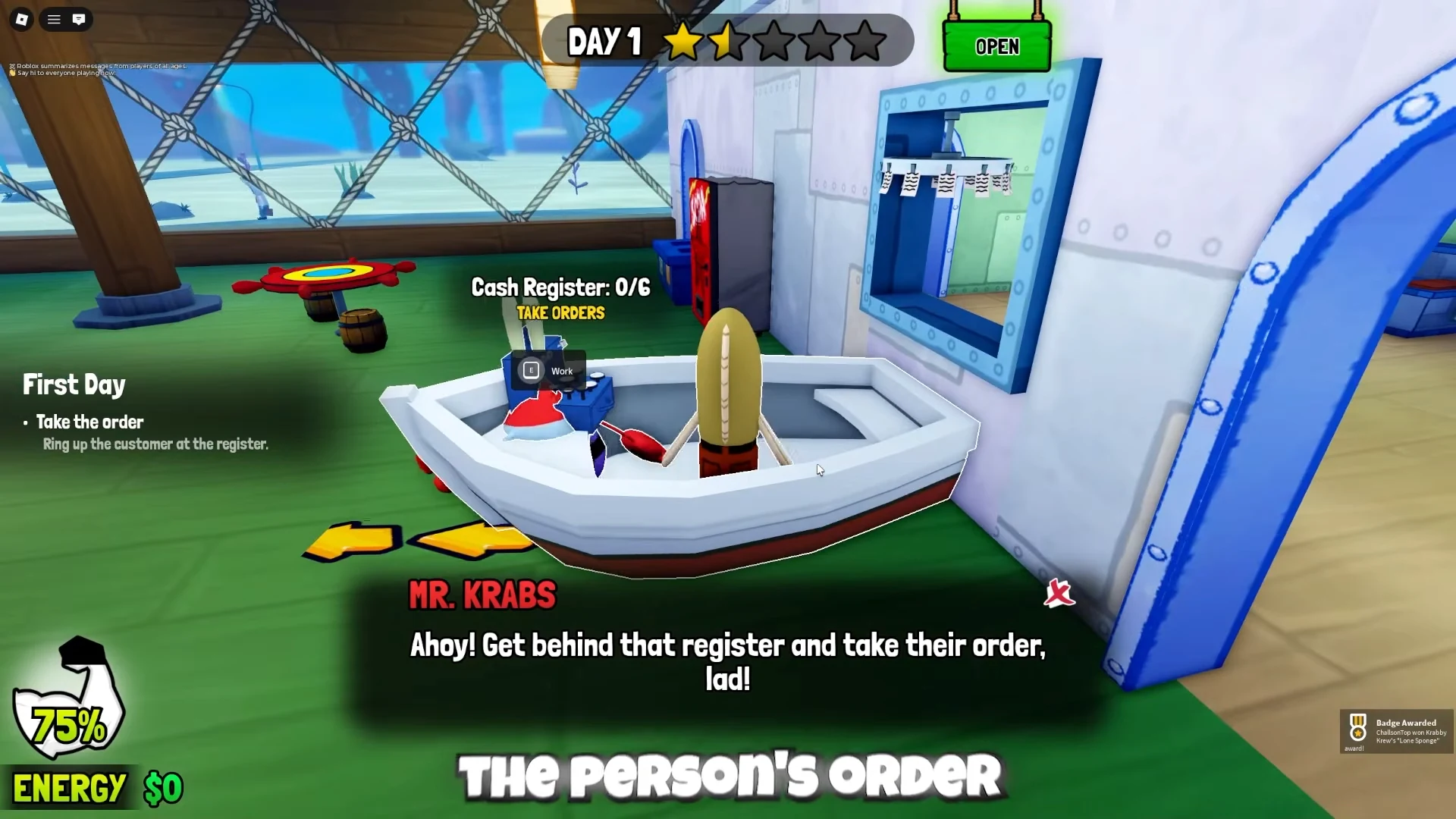
Take an Order at the Boat-Shaped Register
Stand behind the boat-shaped counter at the front of the dining room. Use the Cash Register interaction when a customer is waiting; the tutorial instruction reads TAKE ORDERS. Watch the customer bubble and the left-hand task list so you know what food the order requires. The register counter tracks open orders, which is a useful reminder to finish the tickets you already have.
An order and a finished meal are different things. Taking several tickets does not prepare their food, and carrying a burger does not tell you which customer ordered it. For your first loop, read one ticket and follow it all the way to the right table. Once that sequence is familiar, you can decide how much work to accept at the register.
Cook the Patty Before Assembling the Burger
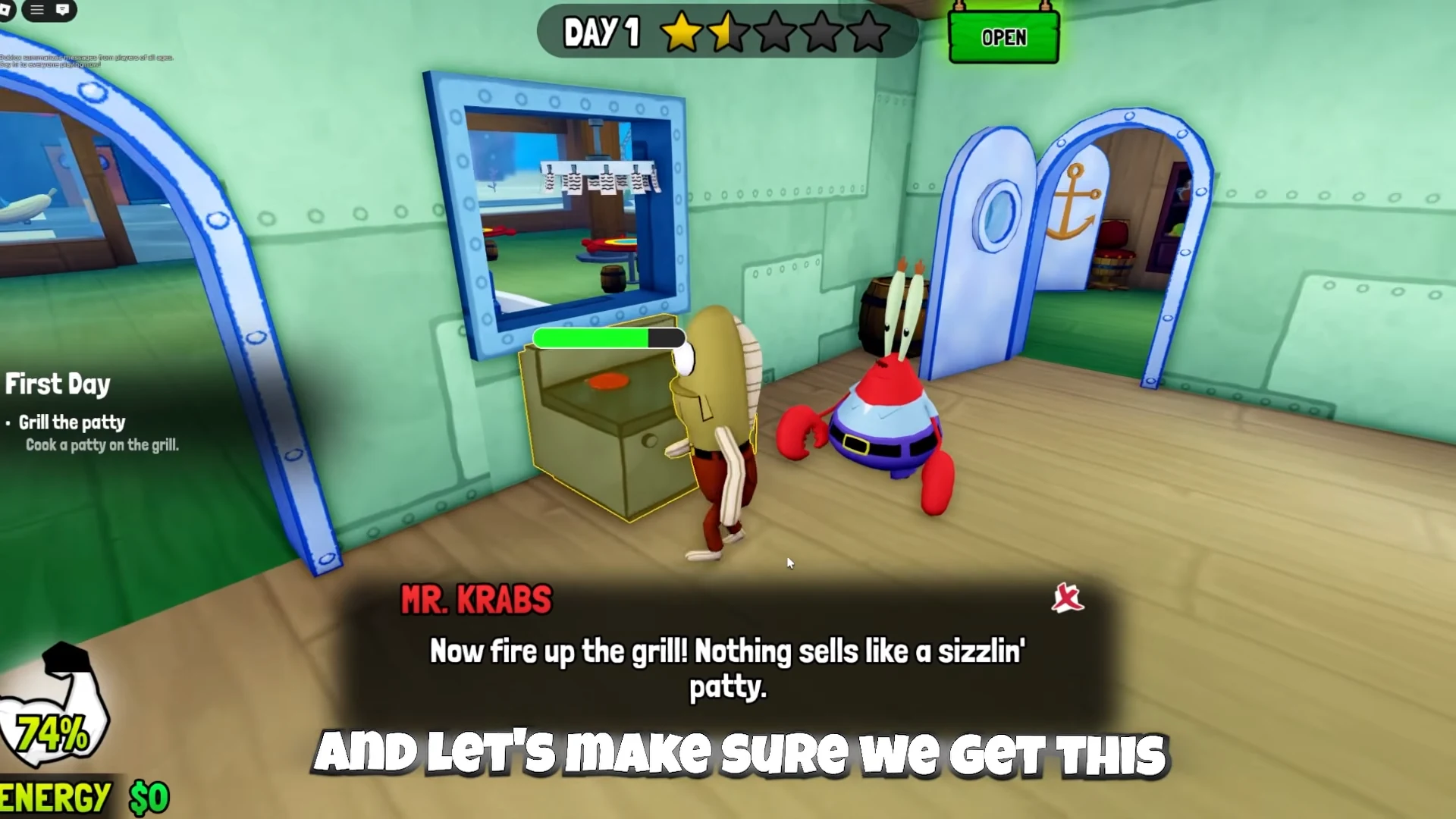
Go through the blue-rimmed kitchen door and interact with the grill. During the tutorial, a progress bar appears over the patty while Mr. Krabs directs you to cook it. Stay with the cooking action and collect the cooked patty before moving to the assembly table. The preparation counter gives you a place to see the food you have made.
Keep the grill and assembly stages separate in your head. The cooked patty is an ingredient; it is not yet a complete customer order. If you cannot see the ingredient you need at assembly, return to its preparation station and finish that job. Character perks can change grill work, so the character roles page explains the SpongeBob cooking perk separately.
Build the Requested Meal and Press Ready
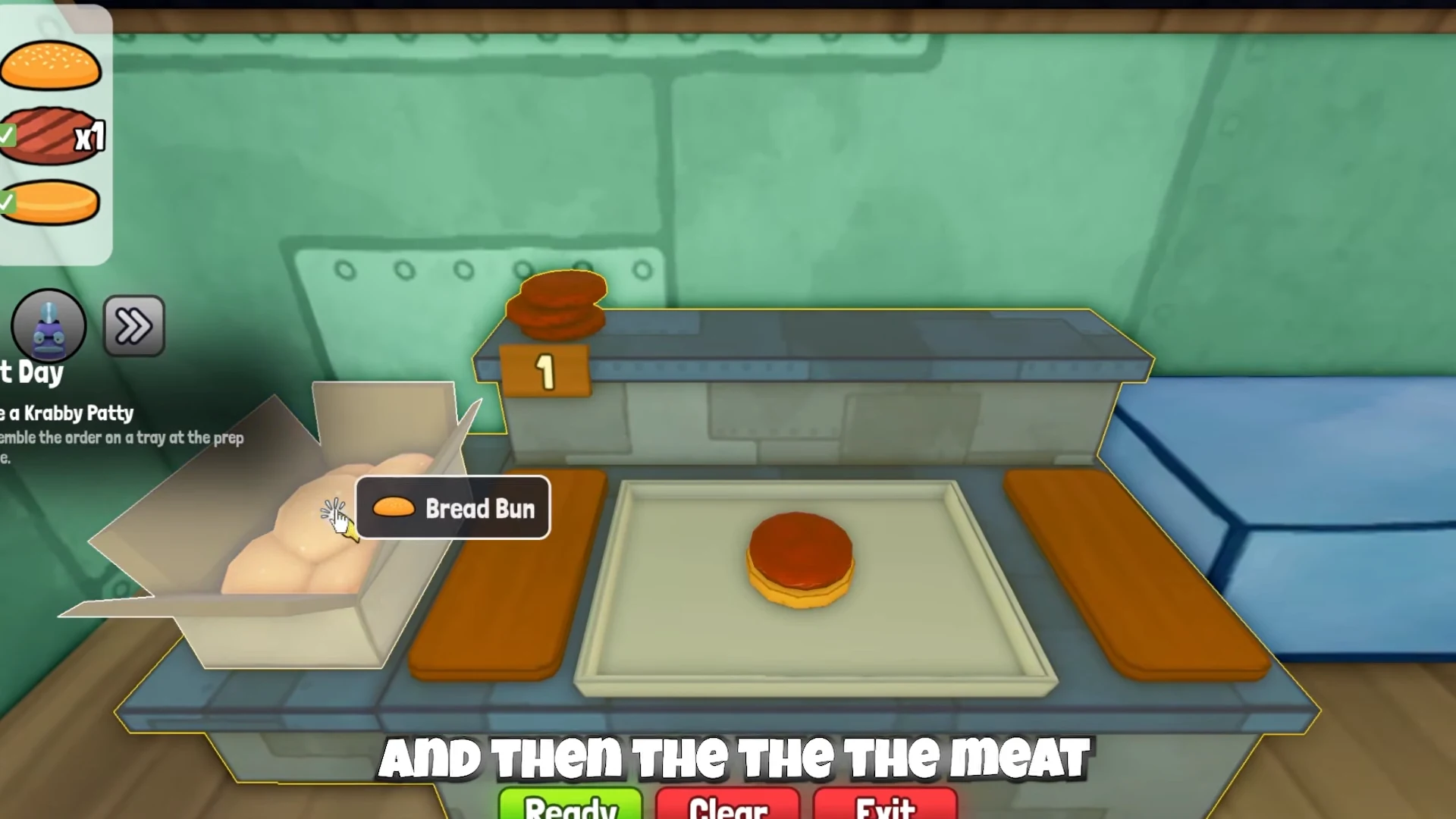
At the assembly table, read the order recipe and choose the matching ingredients. The basic tutorial burger uses a Bread Bun, one cooked patty and a top bun. Add the pieces in the displayed order and use Ready when the tray matches the request. The interface also offers Clear, so a mistaken stack can be reset before delivery.
Do not copy a later-day tray from a screenshot into every order. Extra toppings and drinks belong to the ticket that requests them. Check the order picture again if the meal looks complete but the task has not progressed. Building an accurate tray is more useful than quickly finishing the wrong one.
Deliver to the Matching Customer
Take the completed tray from the serving area and carry it into the dining room. Match the ingredients in the order bubble rather than choosing the nearest seated character. A matching customer is highlighted green in the reviewed solo example, and the Deliver prompt appears beside the table. Use that prompt only after checking that the bubble matches the food you are holding.
A customer eating the delivered burger is a visible sign that this part of the loop has succeeded. Stay aware of the table after the meal, because service includes the work that follows delivery. The money guide separates that restaurant income from the Doubloons used for character progression.
Clear Tables and Collect the Remaining Money
After the customer finishes, collect the money and remove the used tray or trash. A dirty table is unfinished work even if the food was correct. The tutorial also tells you to collect all the money to end the day, so check completed tables before assuming the register is the problem. Put discarded items into the indoor bin and follow the current task marker.
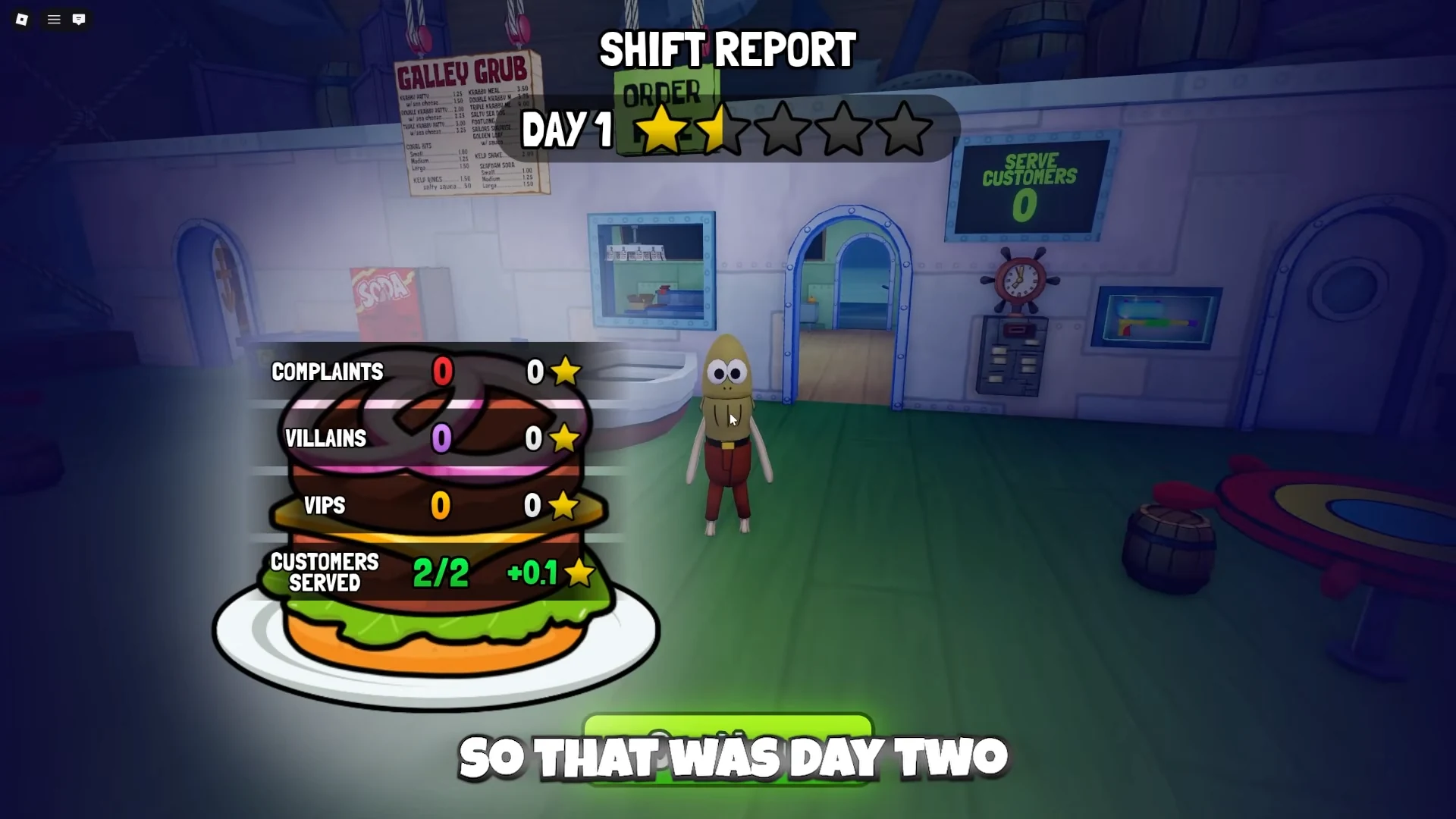
The Shift Report is the clear transition out of service. In the reviewed tutorial example, its heading says DAY 1 and its customer row shows the completed quota. That report is more useful than guessing the day from how long you have played. It also separates service results from the cleaning jobs that still remain before another opening.
Finish Night Chores and Use the Shift Clock
Read the Nightly Tasks checklist after the restaurant closes. It includes cleaning workstations, mopping spills and wiping tables, while trash must also be taken out. Use the mop for the floor jobs and follow the markers for the other work. Check each remaining counter as you go so you do not repeat a task that is already finished.
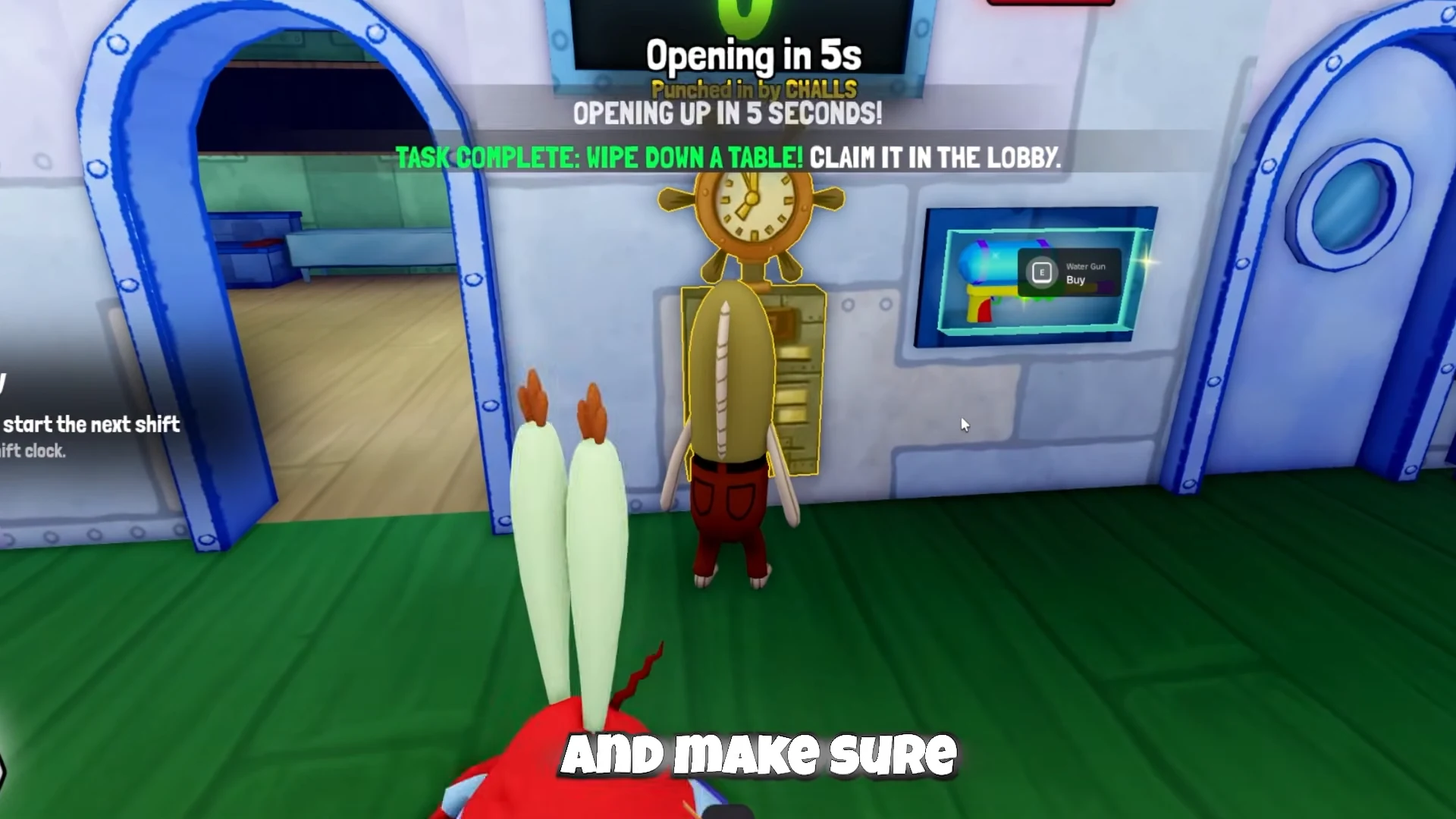
The empty-bin message tells you that the indoor bin has been cleared, but it is not proof that every nightly chore is finished. Complete the other visible checklist items, then return to the golden wall clock. Punching in starts the next opening countdown. The goal is to reach that next opening with the previous service and cleanup actually complete.
If the Shift Does Not Move On
First decide which stage you are in: open service, the Shift Report, or closed cleanup. During service, compare open tickets with the meals you have delivered and inspect tables for remaining cash. During cleanup, follow the nightly counters and arrows. Those visible signals are more reliable than wandering between every station without a specific unfinished job.
This guide does not establish a universal keyboard layout for every device. The reviewed PC footage shows interaction prompts, while the official game supports PC, mobile, tablet and console. Follow the prompt displayed on your device rather than applying a PC key to every platform. For an efficient repeat of the same loop, move next to the solo shift routine.
Sources
Reviewed:
Roblox public game; video samples reviewed 20 October 2026. Exact build not supplied by the video authors.
Official information and the specific video chapters listed below support this page. These examples do not establish a universal fastest route or every later-day mechanic.